 Toybird Labs Blog
Use the same task to choose between window layouts. The following specification table and decision memo are fictional teaching material, not a timed productivity test.
A reference table and a memo to complete
You need a component delivered within two weeks, with at least a one-year warranty. The example prices are arbitrary units, not real offers.
| Option | Lead time | Example price | Warranty |
|---|---|---|---|
| A | 2 weeks | 120 | 1 year |
| B | 3 weeks | 100 | 2 years |
| C | Unconfirmed | 90 | Unconfirmed |
Your memo should say that A meets the stated timing and warranty conditions, B misses the timing condition, and C requires clarification. It should not select C merely because 90 is the smallest number. Keep the condition labels visible while writing; copying only the price column removes the context that makes the comparison meaningful.
Choose a layout for how often you operate each window
| Work pattern | Useful starting layout | Reason |
|---|---|---|
| You edit both the source and memo repeatedly | Standard side-by-side windows | Both interfaces need room for interaction. |
| You write in the memo and occasionally consult a few source rows | Main window plus a small reference view | The writing area remains the primary workspace. |
| You need a whole-page diagram or dense table | A larger source window or side-by-side view | Small text or missing context would defeat the purpose. |
macOS provides window tiling and Split View for working with multiple windows. Their exact controls depend on the macOS version; see Apple's window-tiling guide. A reference utility is an additional option, not a reason to abandon those built-in layouts.
Make the reference small enough to help, not too small to read
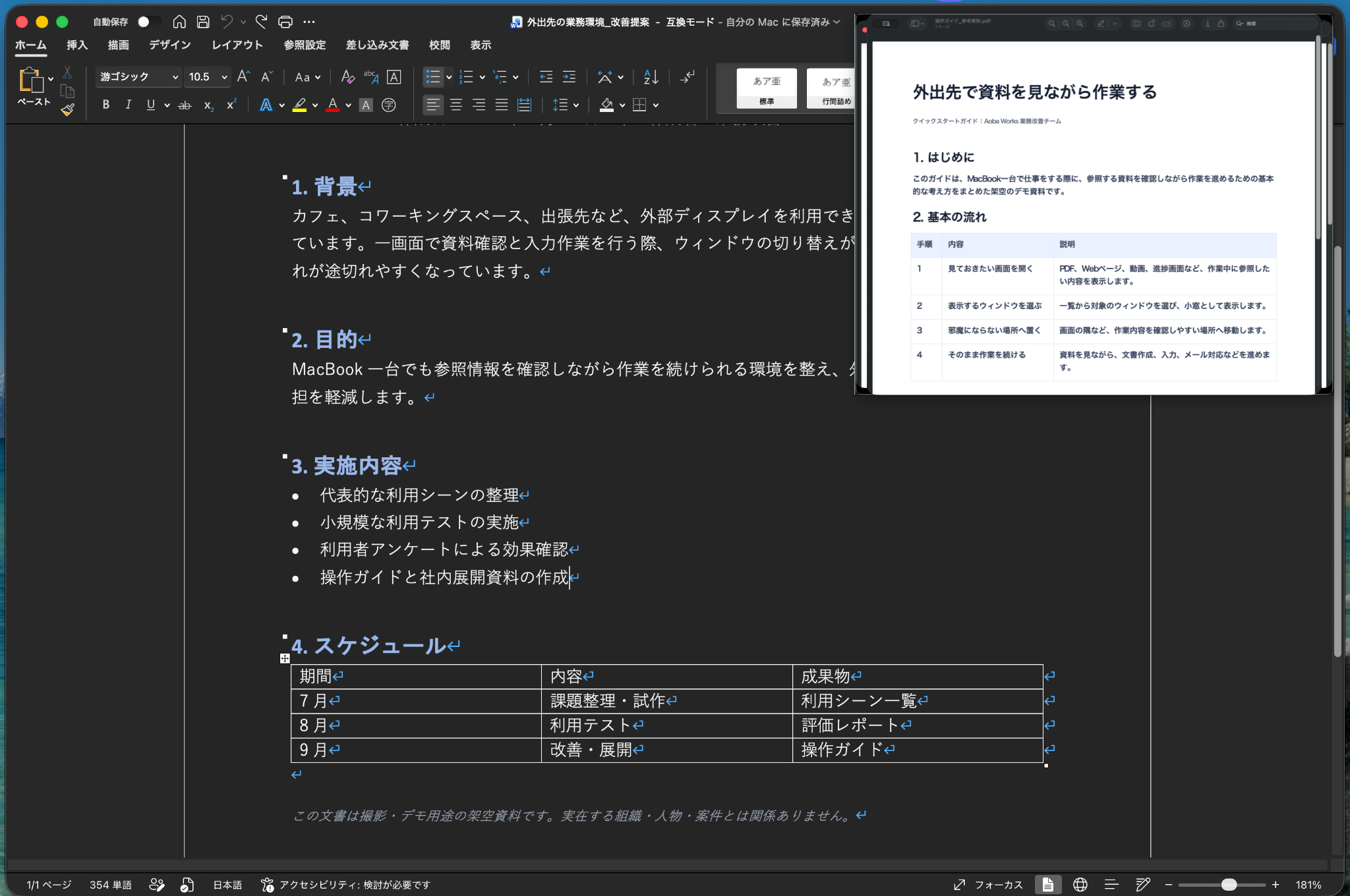
Open the source document and the memo. In Pocket Screen, choose the source window for a reference view, keep the relevant rows and their headers visible, then return to writing in the memo. Adjust placement so the view does not cover the line or controls you are editing. If reading requires repeated enlargement, give the source more space instead of forcing it into a tiny corner.
The key value is retaining the part you need while the main application stays usable. This is different from treating every source window as equally important or showing an entire desktop inside a miniature preview.
Distinguish a live reference from a saved state
A live reference is appropriate when you need the source's current state. A frozen reference is useful when comparing a state that may change. After freezing, do not assume later changes in the source are reflected there. Label or otherwise remember when the state was captured.
Do not infer independent, simultaneous capture of all browser tabs from a demonstration of one browser window. Changing what that window displays and retaining a state is a different operation. Check the currently released product's available controls rather than assuming a future demonstration is already shipping.
Check the memo against the original
The finished note for this example is: “A satisfies the two-week and one-year conditions. B has a longer warranty but does not meet the delivery requirement. Ask C to confirm lead time and warranty before comparing it as an eligible option.”
Return to the original source for the final check, especially if the view was frozen or the quotation changed. A reference window helps access information; it does not certify that the information is current or the decision is correct.
Before sharing your screen
The arrangement visible to you is not automatically the arrangement received by another participant. Test the actual sharing mode with harmless content before displaying anything sensitive. The separate capture guide explains how to record that check. This article's case compares layouts and decision context; it does not claim measured time savings, capture performance or universal sharing behavior.